.svg)


When you write an email, you usually focus on the content first and add the technical details later. After all, your email is an opportunity to dazzle your recipient with your creativity!
You can then add the practical information in the footer section at the bottom of the email. We'll show you the steps to set up a footer in Gmail and what to include to make your email even more effective.
The words “footer” and “email signature” are very similar notions that are often mixed up. There is, however, a slight but crucial difference between the two terms:
The difference is small! In fact, even Gmail doesn't really distinguish between the two concepts: generally speaking, when you want to add a footer to Gmail, you use the email Signature function.

There are several ways to add your contact details to Gmail. Let's take a quick look at them!
This is the easiest way to add occasional information when you have a small business or are a freelancer. Once you've written your email, you can simply type your contact details manually at the bottom of the email.
The main problem with this technique is that you'll have to repeat the process for every email. Not ideal when you want to save time and energy.
By the way, setting up Gmail rules can also help streamline your workflow!
If you want a more automated solution, you can also use Gmail's email Signature feature. This method is suitable for small businesses that want to automate repetitive tasks and improve consistency across their emails.
To do this, you can either manually enter your text information or add your own email signature in image format. The image will then appear automatically in your emails. We describe how to do this further down in the article.
For larger companies that want to standardize their footers and foster more consistent communication, there are also external solutions for creating and managing signatures.
The Letsignit tool, for example, allows you to design interactive professional email signatures with personalized information for each employee. All of this is aligned with your visual identity and current communication strategy!

You probably already know what essential information to include at the end of your message: your name, job title, contact details, etc. But a footer can also include additional elements that make your emails more engaging! Here are a few suggestions.
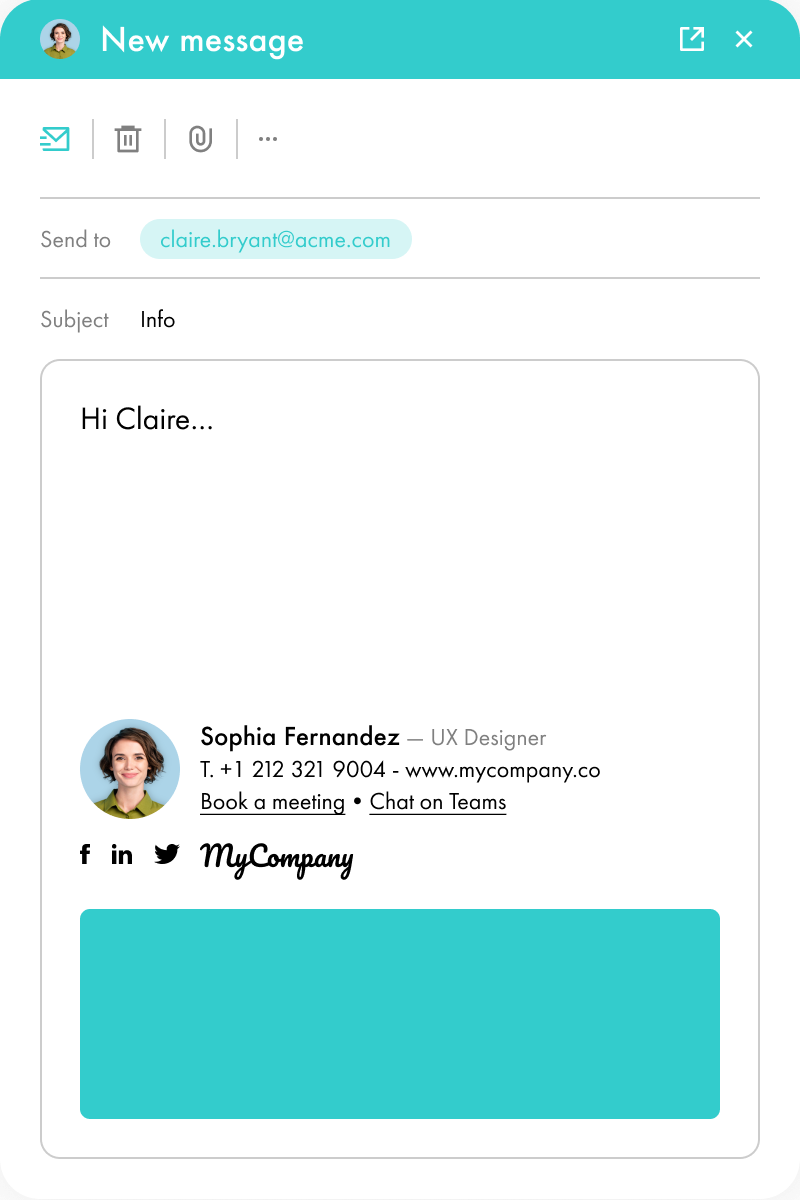
Why not include a banner in your footer? A banner is a visual element (often clickable) added to the end of an email. It can contain various links and information depending on your communication objectives: call to action, announcement of a new offer, internal event, etc.
When used alongside your signature, the banner helps you make your emails more interactive, inviting your audience to come and meet you or take action!
And if you receive a lot of replies, consider setting up your Gmail filters to stay organized.
Take advantage of the footer to remind people of your company's values by adding its slogan, tagline, or a quote. A well-chosen phrase can foster an emotional connection with your brand while affirming its personality.
Don't forget to use the formatting tools to highlight your slogan and add your personal touches.
Creative touches can make your communication stand out! Use the Gmail footer to add unexpected visual elements (as long as they remain relevant).
Consider, for example:
Your time and that of the people you email is precious: make your life easier by adding a button dedicated to making appointments online to the footer. Not only does this save you time, but it also shows your reader that you respect their availability. A practical and modern addition that will suit freelancers and SMEs alike.
Please note: in Gmail, the options for adding buttons are limited. You will need to opt for a simple format, either by adding a phrase or emoji (such as the calendar emoji) with a link, or by using a clickable image.
Tip: to simplify tasks like scheduling while keeping your data secure, don't forget to create a Gmail alias!
QR codes are still relatively rare in emails. And yet, they can accomplish many things, such as redirecting to your website, your portfolio, your social networks, a contact form, and more. A real gateway to your company's world!
Please note: Gmail allows you to integrate a QR code, but only in the form of a static image. Animated QR codes in HTML or JavaScript format are not recognized by the email software.
Setting up a footer in the Gmail app is straightforward. As mentioned above, footers and email signatures are basically considered the same here. So to fill in a footer with your details, you need to use the email signature function:
Your footer/signature is ready and will automatically include all the details you have just added.
To always make sure that all important info is included in your emails, simply enable Gmail sync on your devices. You'll be able to review your emails anytime, anywhere!

To easily change your Gmail footer/signature, simply go to the email Signature section by following the steps described above, then make your changes in the editing area. Click on Save changes: your footer will be automatically updated for future correspondence.
****
More than a simple text box, the Gmail footer helps make your emails more informative and visually consistent. All you have to do is add elements that reflect your brand and communication style.

Yes, with the 'Campaigns' offer, it is possible to track the number of clicks on the email signatures of all your employees in the 'Statistics' area of the platform.
You can then access a detailed or global view of the number of clicks on the email signatures of each employee. You can use the search option to target a specific signature or a given period. Finally, you have the possibility to export all statistics to an Excel document.
If you launch campaigns with banners inserted in your email signatures, you can also access their performance via this same space.
With Letsignit, you can easily add social network icons in your collaborators' email signatures and link to your company pages. Also, our "attributes" feature allows you to manage personalized URLs for each of your collaborators such as their individual LinkedIn profile.
And that's not all: you can add links to an appointment-setting application, allow your customers to leave reviews easily, and integrate our 'Chat on Teams' widget to let anyone start a discussion via Microsoft Teams chat.
It’s up to you! As an administrator of the Letsignit platform, you choose whether or not to grant modification rights to your employees. These permissions are managed on an attribute-by-attribute basis, which means that you can decide to allow the employee to change their phone number, but not the address of your premises, for example.
This feature applies to all attributes in your directory, including custom attributes created on Letsignit. When your employees change one or more attributes, your directory is obviously not affected.
It often happens that employees make their email signature their own: custom format, bad fonts, colors inconsistent with the brand standards... all of this has an impact on your brand!
A consistent visual identity is considered authentic and outperforms a perceived weak one by 20%. And, your customers are 2.4 times more likely to buy your products.
With Letsignit, take back control over your brand identity by standardizing all your email signatures. Our tool has many features that allow you to customize your signatures by department, by audience or by subsidiary. Not to mention the possibility of carrying out campaigns within your email signatures thanks to our Campaign offer.
What is the user experience like for our employees?
In both cases:
In short, they have autonomy in their email signature, but you keep control on the field, signatures, and banners they can edit or use.
With our "multi-signature" feature, your employees can benefit from multiple email signatures. No technical manipulation is required. Thanks to our Add-in for Outlook or the desktop app, they can change their email signatures as they wish with just a few clicks.
Regarding the creation of email signatures, you can make several variations such as:
Everything has been thought of to go further in the personalization process based on the recipient of your emails.
If sending emails has an impact, non-optimized email signatures also have an impact. An unsuitable format or an image that is too heavy considerably increases the size of your signatures... and therefore, your emails.
As a responsible economic actor, we contribute to reducing our CO2 emissions and those of our customers in several ways:
As we are increasingly involved in sustainability initiatives, our priority in 2023 is to develop even more green IT functionality.
If sending emails has an impact, non-optimized email signatures also have an impact. An unsuitable format or an image that is too heavy considerably increases the size of your signatures... and therefore, your emails.
As a responsible economic actor, we contribute to reducing our CO2 emissions and those of our customers in several ways:
As we are increasingly involved in sustainability initiatives, our priority in 2023 is to develop even more green IT functionality.


Lorem ipsum dolor sit amet, consectetur adipiscing elit, sed do eiusmod tempor incididunt ut labore et dolore magna aliqua. Ut enim ad minim veniam, quis nostrud exercitation ullamco laboris nisi ut aliquip ex ea commodo consequat. Duis aute irure dolor in reprehenderit in voluptate velit esse cillum dolore eu fugiat nulla pariatur.