.svg)


You’ve probably been there before: just as you’re about to send a long presentation, a set of travel photos from your trip to the Yucatán, or a memorable video of your dog, an error message pops up saying the attachment is too large.
That’s exactly why we created this guide! Below is an overview of the best solutions for sending large files by email, depending on your email client and file type.
Before explaining how to send large files by email, it’s important to understand the attachment size limits imposed by different email services. These limits exist for several reasons: server security, avoiding long delivery times, and ensuring a smooth experience for all users.
Whether you use the web version, desktop app, or Outlook within the Microsoft 365 ecosystem, the attachment limit is generally the same: between 20 and 25 MB per attachment.
However, Outlook offers an easy workaround. You can use OneDrive to share larger files. In fact, Outlook automatically suggests this option when you try to send a file that exceeds the size limit. With the free version of OneDrive, you get 5 GB of storage—not bad at all!
Google’s email service also sets the attachment size limit at 25 MB, which is more than enough for sending a few photos or a medium-sized PDF.
If you exceed this limit, Gmail automatically switches to Google Drive. The large attachment is uploaded to your Drive (which offers 15 GB of free storage) and a sharing link is inserted into the email. This seamless integration saves you from having to manually compress files.
Yahoo Mail also applies a 25 MB attachment limit, which has become the standard among major email providers.
As with other email clients, Yahoo automatically redirects oversized attachments to another service—this time via its Dropbox integration. You can upload large files and share them easily, with up to 2 GB of free transfers, including HD videos or large folders.
Want to bypass attachment size limits quickly—and without spending a cent? Challenge accepted! Here are the most effective free solutions for sending large files by email.
Imagine tying a thousand helium balloons to an elephant: suddenly, it floats as lightly as a feather… at least in theory. Scientists in the audience, feel free to correct us if needed!
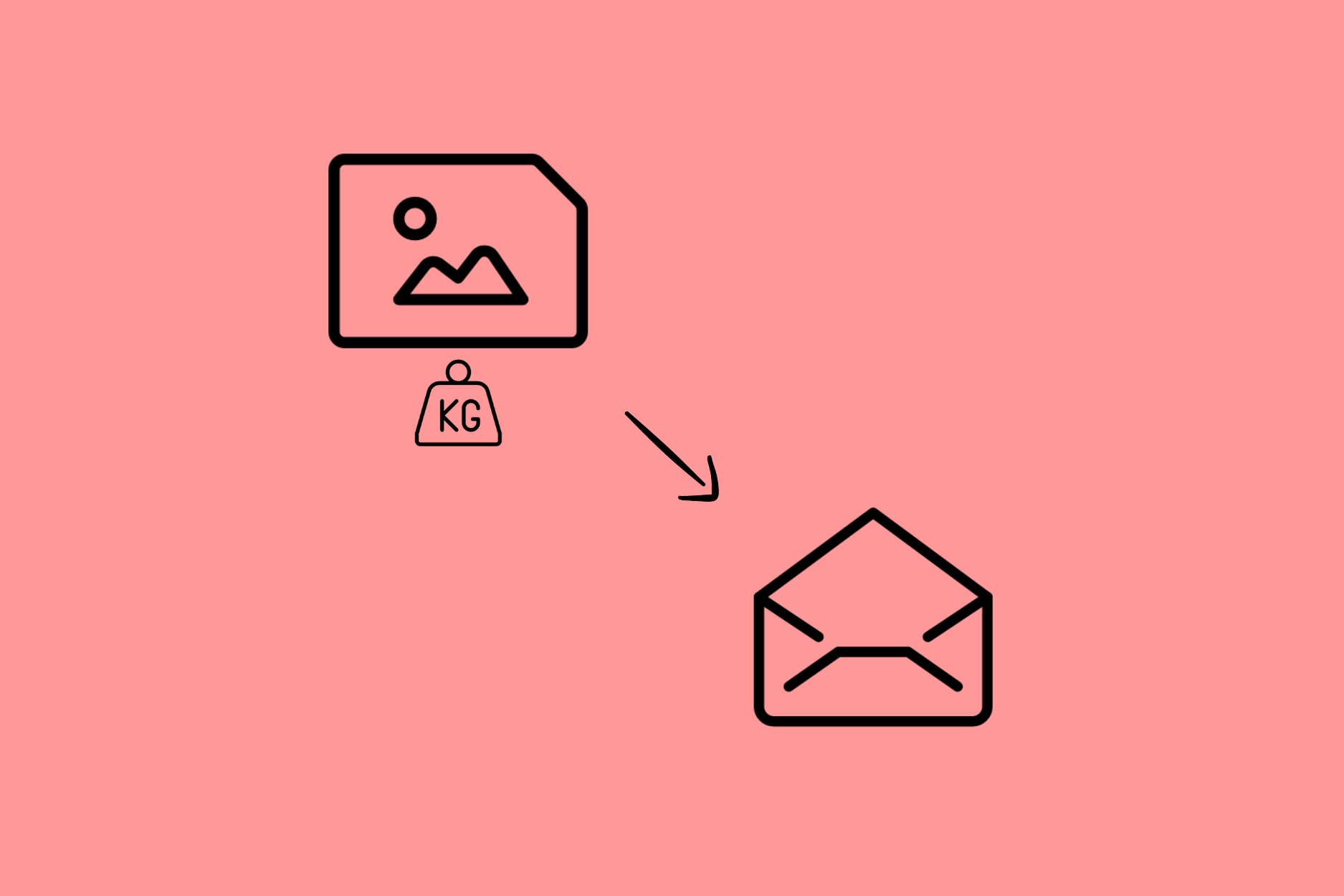
This image perfectly illustrates how file transfer services work. Your large file doesn’t actually “weigh” anything in the email—it’s uploaded to a platform and shared via a simple download link.
Free services like WeTransfer or TransferNow allow you to send files of up to 2 GB at no cost.
They all work in a similar way:
If you prefer not to use a third-party tool—or if your file is just slightly over the limit—you can compress it into a ZIP file. This method is simple, fast, and often built into modern devices (computers, tablets, smartphones).
On a computer, just right-click the file and select “Compress” or “Create archive”. If this option isn’t available, you can use a free compression tool like 7-Zip.
On smartphones or tablets:
Another very popular option—especially among professionals—for sending large files for free and with (almost) no size limit is cloud storage.
Simply upload your file to your email provider’s cloud service and share the link with your recipients.
The most commonly used cloud solutions include Google Drive, OneDrive and iCloud Drive. Key benefits include security, speed, and multi-device synchronization.
Here are our quick guides for the most common free large file-sharing methods.
A download link is either sent directly to the recipient or provided for you to copy and paste into an email.
Note: WeTransfer links are valid for 7 days. After that, the file can no longer be downloaded.
You can also compress the file into a ZIP and attach it.
Or:
Or:
A more hands-on—but effective—solution for sharing large files is manually reducing their size. Here’s how to do it for the most common file formats.
To reduce image size:
To reduce video size:
Tools like HandBrake or VLC are ideal for these adjustments.
To reduce PDF size:
*****
With these techniques, your large files will be as light as soap bubbles and ready to be sent by email!

Outlook allows attachments of up to 20–25 MB. Larger files can be shared via OneDrive using a download link.
You can use cloud storage (Google Drive, OneDrive), a file transfer service (WeTransfer, TransferNow), or compress files into a ZIP archive.
If the video is under the size limit, attach it directly. Otherwise, upload it to a cloud service and share the link in your email.
Attach the file as usual. If it exceeds 25 MB, Gmail automatically uploads it to Google Drive and inserts a sharing link.
Yes! TransferNow offers afree version that allows file transfers of up to 2 GB.
The best way to send very large files is-without a doubt-to use a cloud storage service (like Google Drive, OneDrive, iCloud, or Dropbox) or a file transfer service (like WeTransfer or TransferNow).