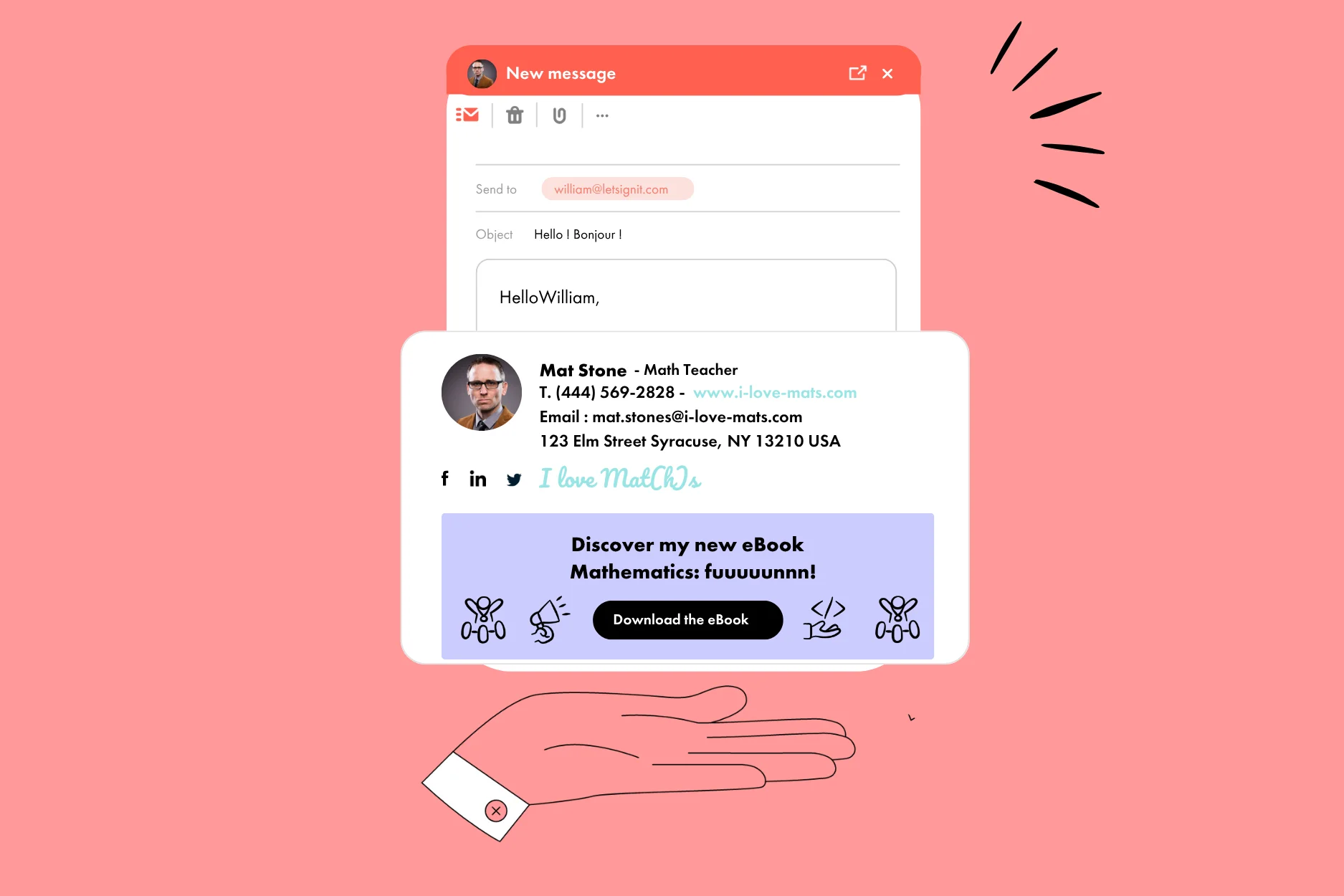
Create an email signature from A to Z: the complete guide.
By
Guillaume De la Sablonnière
Content Factory Manager
Creating an email signature is no small task! Especially when you’ve never done it before and don’t have the right tools.
Imagine the great Leonardo Da Vinci painting the Mona Lisa without brushes or paint? Well, for your email signature, it’s the same thing! No way you’re creating your masterpiece without the right techniques and tools.
Are you ready? In 3, 2, 1! Here’s our complete guide to help you create an email signature worthy of the Mona Lisa!
Is creating your email signature important?
You’ll be surprised if we say yes?
If it’s for a personal email signature, adding one can help your distant cousins remember who you are when you write to them. Or make your mom happy by giving her a chance to see your face every time you send her a sweet letter. So, we can say it’s important, but not essential...
On the other hand, the professional email signature is now fundamental in email exchanges. Why? Because it has numerous positive effects:
It can notably convey a consistent and professional brand image, enhance your company’s credibility, and of course, include your logo, attractive graphic elements, and essential information such as your contact details. And all of this, without forgetting the email banners it can include to communicate various messages on behalf of your company.
Useful as a professional showcase, don’t you think?
Essential elements of an email signature
To make sure you don’t forget anything when creating your email signature, we’ve prepared a superb list of elements it should include.
Here are the key essential elements:
Full name and position: information to identify you and specify your role within the company;
Contact details: your phone number and professional email address to make it easy for others to get in touch with you;
Company name and logo: to specify which company you work for;
Website: adding a link to your website is a nice way to give more visibility to your site;
Social media links: your small LinkedIn, X, or why not Facebook icons (nobody’s here to judge you);
Call to action: the call to action is not strictly “essential” for understanding your email signature. However, it can encourage your recipients to discover specific pages on your website, sign up for events you’ve organized, subscribe to your newsletter, etc.
Which ultimately gives a result like this:
Pro tip: Keep in mind that an email signature should be concise and readable on all devices, especially mobile devices. An HTML format is often recommended for maximum compatibility (versus images, which may distort and give an odd appearance depending on the screens used).
Adopt these practices to ensure your signature is not only professional but also EXCEPTIONAL.
How to create your own email signature?
To create your email signature, several methods can be considered:
You can create it in image format (which we strongly discourage, as it can cause display issues on some devices);
You can create your signature in HTML format and integrate it yourself into your email solution;
You can use a signature generator that works with a visual designer, to easily create your first signature;
Finally, you can choose an email signature management solution, which allows you to standardize the signatures of all employees in the company.
1 - Email signature management solutions
An email signature management solution like Letsignit is the ultimate tool to help you create and manage the email signatures of all employees in your company!
With it, all your employees' Outlook signatures are created automatically, and you can (again automatically) integrate communication campaigns with calls to action, etc.
And that’s not to mention the possibility of tracking clicks on your banners, automatically alternating banners, adapting them based on the recipient, and everything else!
2 - Adding a signature in image format
We repeat, this is not the ideal approach, but if you choose to go with an image format for your first email signature, a solution like Canva could be helpful.
Once your signature is created, just insert it into your email client’s signature editor. Oh, and don’t forget to add a clickable link to the image to redirect to your website, LinkedIn profile, or any other page of interest.
Since it’s an image format, make sure to test its appearance across different email clients and devices. If everything looks good, you are good to go!
3 - Creating an HTML email signature
HTML signatures offer advanced customization with interactive elements like images and links. And the big advantage—compared to an image signature—is its adaptability to different devices and email clients.
To create one, you either need some basic HTML knowledge or the ability to tweak an existing code.
Note that HTML signatures are not perfect and also come with drawbacks. As you’ve noticed, their design requires technical skills, particularly in HTML coding. It’s also worth noting that some email clients might block your messages if your HTML signature is not optimized correctly.
4 - Using a signature generator
You can also choose to use a signature generator. This tool allows you to easily create an email signature with a practical designer. Once created, you just copy it into your email client’s signature editor (Outlook, Gmail, Apple Mail, and all others).
Some advantages of using a signature generator:
Simplicity: enter your contact information, select a template, and your signature is ready;
Customization: add elements like your logo, social media links, or promotional banners;
Compatibility: the generated signatures are often compatible with multiple platforms, ensuring good integration.
And the disadvantages:
Limited number of templates: free generators often offer a limited number of templates (if not just one), which somewhat limits your creative capabilities;
Manual changes: with such a tool, you can only create one signature at a time. Managing signatures becomes quickly complex for larger companies;
Integration issues: depending on the email client you use, integrating the generated signature isn’t always easy;
Privacy issues: some free generators may collect your personal data.
Using Templates to Create Your Email Signature
Where to Find Email Signature Templates?
To find free email signature templates, several options are available. Here are some online tools that can help you create a customized signature:
Letsignit: our email signature creation tool offers many templates that you can modify. You can work on an existing base. Our team has also created a library of signatures and banners to help inspire you (in French only for the time being);
Canva: offers a wide range of free and customizable templates. The templates are tailored for different professional sectors and can be easily edited;
HubSpot: offers various templates through its intuitive interface. With HubSpot, you can customize colors, fonts, add your company logo, etc.;
Wizlogo: also offers several templates for creating your signature. You choose the template you want, enter your company details, and you're good to go!
Examples of Effective Email Signature Templates
Need some inspiration to create the perfect signature? Here are some examples to copy or customize according to your brand's image and the information you want to highlight.
Example 1
Example 2
Example 3
The Content of Your Email Signature: The Big Questions
Profile Photo or No Profile Photo?
This question is tricky because there can be benefits to creating a signature with a profile photo, as there are also advantages to not having one. It also depends on whether you're a shy person or not. Some people simply don't like showing their faces.
The Benefits:
A profile photo humanizes your email signature. It automatically adds a touch of warmth, allowing your recipients to feel like they are talking to a human, which makes a good first impression;
Having a photo in your email signature also projects a more polished image. It gives a more refined view of the company you work for;
A photo also gives more credibility to your exchanges. With your photo, your recipients can easily verify your identity and thus trust you more;
It also helps with memorization because your name is associated with a face. Future exchanges are somehow easier because your recipients will remember you better.
The Disadvantages:
It forces shyer people to publicly display themselves;
In some ways, it encourages "judging by appearance," which could lead to forming prejudices about people based on a single image;
A profile photo might cause display issues or simply be blocked by some email servers. In this case, the email signature won't display correctly, harming the professional appearance of the signature;
Adding images can increase the overall size of the email, thus increasing its loading time. You should optimize them as much as possible to solve this problem (and minimize their environmental impact);
An email with overly large images might be considered "suspicious" by email servers. Therefore, the risk of your emails being classified as spam is increased;
Adding an image without an "alt tag" will reduce the overall accessibility of your emails. Recipients with visual or motor impairments may find it harder to interact with different elements of your signature, including images.
Should You Include Your Phone Number?
Well, it depends on your goals. If you don’t want to be contacted by phone, then it’s not necessary to include it.
If you only have a personal phone number, you're not obliged to reveal it either.
In reality, it depends on your position and your objectives. For instance, if you're in sales and an interested client wants to contact you quickly, not finding your phone number might cause some frustration.
In other cases, email communication might work just fine.
What About the Company Logo? Should We Include It or Not?
Unless it's for accessibility reasons or you’re concerned that your emails will land in the spam folder, we recommend including your beautiful company logo.
This way, your email signature looks more high-end, polished, and creates coherence with the company’s graphic charter. In short: you'll make a good impression.
Because this:
Is definitely a bit better than this:
Which Social Media Should You Include in Your Signature?
Having too many different social media icons can seem strange to your recipients. The person you're writing to should easily know which professional networks they can follow or contact you on.
We recommend including 2-3 social media networks in your signature. There's no need to go beyond that.
The only challenge is selecting which 2-3 social networks you want to highlight.
In any case, remember that you'll have other opportunities to showcase your Reddit community of astronomy enthusiasts from Vercors to your contacts.
What Length/Size Should My Email Signature Be?
Although there’s no fixed size in terms of text content, we still recommend following a certain email signature format so that it displays correctly on all devices and email clients.
Apart from that, the general idea is to keep it as short as possible. People don’t want to read a novel JUST AFTER reading your email.
For this reason, we recommend:
Limiting to essential information;
Introducing yourself simply (just because your company calls you "the eternal and friendly magician of St. Patrick's Day underwear" doesn't mean you need to add it to your signature instead of just "Project Manager");
Avoid cluttering it with unnecessary design effects. Save the innocent eyes of your recipients!
Creating Your Email Signature on Different Email Clients
Once your signature is created or designed, it's time to import it into your client or email software. Depending on what you use, the process may vary slightly.
Here's how to set it up based on the platform you're using.
How to Create an Email Signature on Outlook?
To create an email signature on Outlook (web):
Start by clicking on "Settings" and go to the "Compose and reply" section;
Under "Email signature," you can add a new signature;
Check "Automatically add my signature to new emails I create" and "Automatically add my signature to emails I forward or reply to";
Click "Save."
Note that the "Settings" section may appear differently if you're on mobile or desktop, or if you're using the app or the web version. For more information, visit our dedicated article on Outlook signatures.
How to Create an Email Signature on Gmail?
To create an email signature on Gmail:
Log into your Gmail account;
Click the gear icon in the upper right corner of the page, then select "See all settings";
Under the "General" tab, scroll down to the "Signature" section;
Click "Create new";
Name it;
Use the editor that appears to add your signature;
Under "Signature defaults," select your new signature for new emails and replies/forwards;
Scroll down and click "Save Changes."
How to Create an Email Signature on Mail (macOS)?
To create an email signature on Mail:
Open the Mail app;
Go to the "Mail" menu and select "Preferences";
Go to the "Signatures" tab;
Then click the "+" button;
Give it an identifiable name;
Add the desired content in the signature editor;
Then exit the menu.
A tip: To make your signature appear after the original text of a message, uncheck "Place the signature above the quoted text." This ensures a consistent appearance of your message and signature. Nothing will stop you from making a good impression!
How to Insert a Logo in Your Email Signature?
To integrate a logo into your email signature, first prepare your image in PNG or JPG format. These formats are ideal to preserve visual quality and ensure maximum compatibility with different email services.
On Outlook: Click "Settings" and go to the "Compose and reply" section. Under "Email signature," you can click the "Insert images" button and choose your logo.
On Gmail: Go to the "Settings" tab, then "See all settings." In the "General" tab, find the "Signature" section. Click the button to create a signature, name it, then choose "Insert image" to add your logo.
On Mac Mail: Open the Mail app, go to "Preferences" via the Mail menu. Click the "Signatures" tab, then select the email account where you want to add a signature. Click the "+" button to create a new signature, then use the "Insert image" option to add your logo.
Remember to save your changes and test the display of your signature by sending an email to yourself!
Mistakes to Avoid When Creating an Email Signature
When setting up your email signature, there are certain pitfalls to avoid if you want to take full advantage of its benefits.
Here are the main ones:
Too Long Email Signature: An overly long email signature is not ideal. Not only can it distract from your message, but it can also make your emails look less professional. To avoid this, aim for a clean layout and limit the amount of information;
Information Overload: It's also important to avoid overloading your signature with too much information. It becomes useless if your recipient doesn’t even know where to focus when they see it;
Hard-to-Read Font: Because the goal is not to hurt eyes. Use a clear and readable font, and make sure the text is well-aligned;
Too Fancy Design: An original design? Why not! But an overly original layout can also harm you. So, be creative, but without compromising readability and the overall coherence of your signature;
An Overly Heavy Signature: To avoid loading issues, keep the total weight of your signature under 120 KB (or thereabouts);
Overuse of Social Icons: If you are present on all the social networks in the world, your email signature may not be the best place to remind people of that. Instead, focus on including links to social media that are professionally relevant to you.
So, limit yourself to the essential information and elements:
A company logo and/or a profile picture, nothing more;
Links to relevant social networks;
And why not a small promotional banner?;
Using an Email Signature Solution
With Letsignit, managing email signatures becomes a real communication lever for professionals and companies. Our solution allows you to create and deploy personalized signatures in just a few minutes, with no technical skills required.
Here are some concrete benefits of our solution:
Professionalism: Letsignit enhances your company's brand image by unifying your employees' email signatures and ensuring a consistent, professional presentation on every email sent;
Time Saving: With the intuitive interface of our tool, creating signatures becomes simpler, as well as updating and deploying signatures for all your employees. You’ll have more time to focus on higher-value tasks;
Uniformity: The solution ensures complete consistency in signatures across the company. This provides better visual and informational coherence in all your communications;
Advanced Features: Letsignit allows you to add dynamic banners, links to social media, or calls to action directly within signatures. Perfect for boosting recipient engagement!
By adopting Letsignit, you can easily centralize signature management, adapt them in real-time to the company’s needs, and turn every email into an effective communication tool.
About the author
Guillaume is the Content Factory Manager at Letsignit! With words, he creates various content (textual, videos, and in the most extreme cases, telepathic) to increase Letsignit's visibility on the web. Legend has it that at the age of 3, Guillaume created his first multichannel web marketing strategy using a dictionary, a baby bottle, and a bit of Chinese ink. It's unclear whether this is true, but at least, that’s what they say...
About Letsignit
Letsignit is an email signature management solution that allows organizations to transform their employees' email signatures into a powerful 1-1 engagement medium for their brands and campaigns.
Your employees already represent your brand. Every day, across every interaction.









.svg)