.svg)



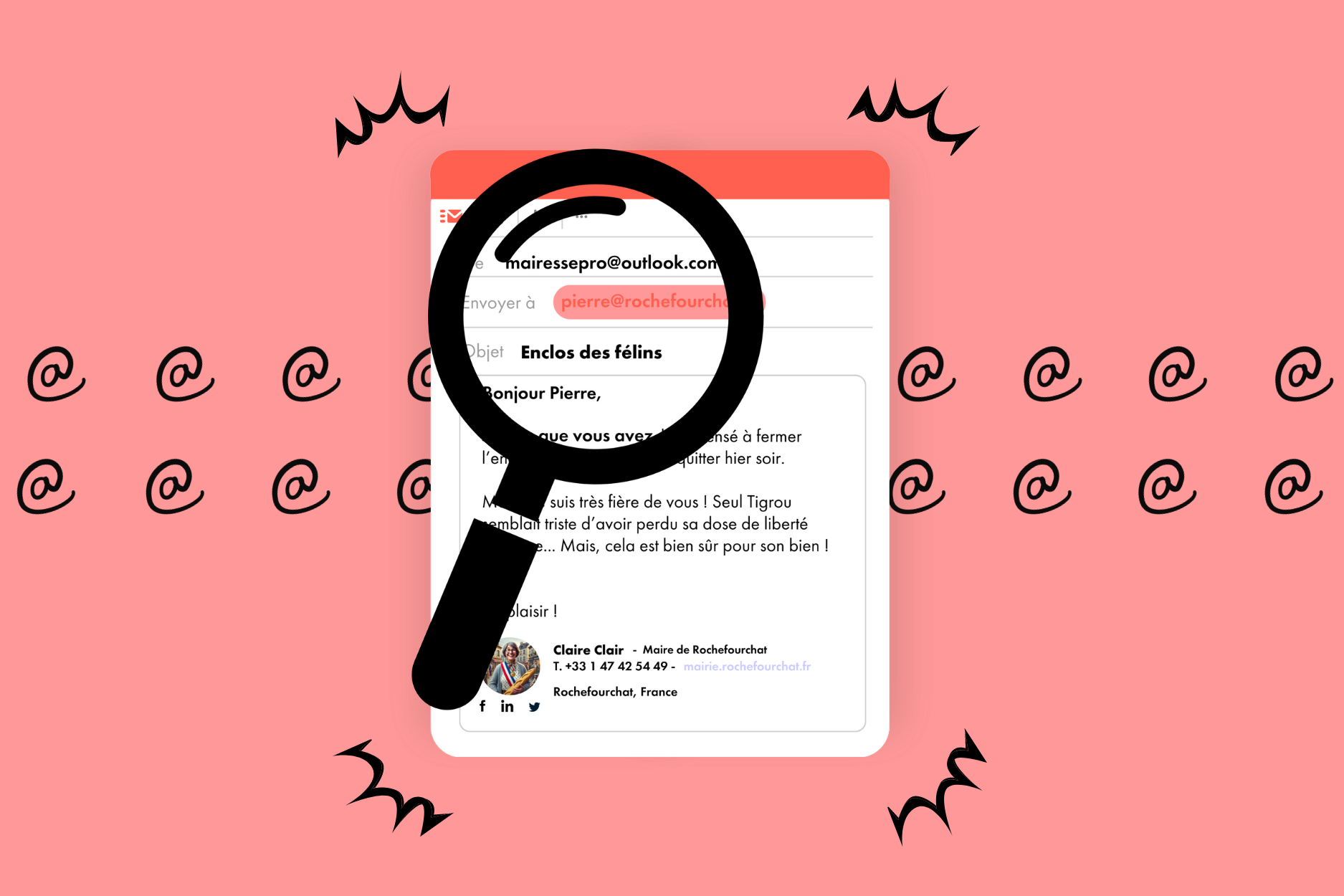
"Nothing is worth more than this day," said German philosopher Goethe. And you can make the most of today when your daily tasks are optimized (what a wonderful connection, isn't it?).
Take your email exchanges, for example. When you have a ready-made response for repetitive emails, you save time and can devote yourself fully to your more urgent tasks.
That's where the email template comes in! This automatic response can save you precious time and energy, which would be much more useful for other activities.
We'll tell you right now how to create an email template in Outlook and put it to work for you.
(To find out directly how to create your email template, go to the appropriate section.)

"Email templates have completely revolutionized the way I communicate," said our favorite artist, Britney Spears. Or was it someone else? Well, it doesn't matter!
This simple little adjustment can have several immediate benefits for your communication, including:
You probably receive and send the same types of emails regularly (appointment requests or follow-up emails, for example) from your work email address.
Although short, these correspondences can, without you realizing it, eat away at precious minutes of your day. Added up, they represent hours spent writing and rewriting the same thing. Not ideal for staying efficient and focused...
What's more, with email templates, even personalization is quick. Once the template has been created, you can modify only the variable information, such as a date or a name, while keeping the message body the same.
Choosing your email templates in Outlook also allows you to establish communication that is aligned with your company.
In both form and substance, you can design uniform responses with consistent blocks of content across all your exchanges. You can define all the elements of your message templates in advance, including tone, style, and the presence of images or other elements, such as an email signature.
This will make your brand image even more assertive, consistent, and impactful! In fact, there are other tools for effective communication, such as ahem professional signatures!
Interested? Then check out our Outlook signature templates!
By creating a predefined email template for each type of correspondence, you encourage smooth and optimized organization within your company.
You and your employees will no longer waste time wondering who should respond when and how. Thanks to this partial automation of communication flows, everyone can focus on their tasks with peace of mind.
Optimized task management can only have a positive impact on your teams' productivity and performance—a solution that benefits businesses of all sizes.

Here's how to add or set up email templates in Outlook for the classic Outlook for Windows desktop application:
Tip: You can also design an email template using basic formatting, rich text, or even plain text depending on your needs and which email clients your recipients use.
Need inspiration for your automatic reply when you're out of the office? Browse these out-of-office messages examples!
Creating email templates in the Outlook web app works differently than in the desktop version. Here's a better way to set up templates for Outlook web:
Note: The web app doesn't support native .oft template files, so using drafts or add-ins is the most practical solution for templates in the browser version.
Now here's how to put your brand new templates to good use!
To open your newly created email template and send it, just follow these simple steps:
Here are a few professional emails examples to give you some ideas for writing your own, including an Outlook email sample for various situations.
Outlook doesn't include a feature to reply directly with a pre-created template. However, there are three ways to get around this limitation:
To create a quick step with Quick Steps:
Please note: This method does not support images or links and is limited to basic formatting.
To reply to an email with a template using Kutools or other add-ins:
These add-ins offer additional functionality for managing repeat content and creating more sophisticated templates for classic Outlook for Windows.
Whether it's due to changes in your correspondence or to update your communication, you may need to regularly edit your email templates in Outlook.
Here's how to do it:
Creating a template with attachments follows the same process as creating a standard template:
When you open and use this template, the attachments will be included automatically—perfect for marketing email templates in Outlook or newsletters that always include the same documents.
For businesses that want to share templates across teams:
This ensures consistency across your organization and makes it easy to distribute marketing email templates, newsletter templates in Outlook, or any other standardized content.
***
You now have everything you need to create and send a template email in Outlook! Need ideas for your professional correspondence? Find out how to write a professional email.

To save your email template in Outlook, after writing your template in a New Message, simply click on File, then Save As, and choose Outlook Template (.oft format). The Save As dialog box will appear, allowing you to select a save location—typically the default Microsoft\Templates folder. This creates a reusable template file that you can access whenever you need it.
Email templates in Outlook can be accessed in the New Message creation box. Then select New Items, then Choose a Form, and User Templates in File System. In some versions of classic Outlook for Windows, you can also find them under My Templates in the Applications window of the toolbar, or by clicking the templates icon if available. For the Outlook web app, templates are typically managed as saved drafts or through add-ins.
To create a custom email template, follow the standard template creation process but design it with placeholders for variable information (like [Customer Name] or [Date]). For more advanced fillable templates with form fields, you may need to use Word email templates integrated with Outlook or specialized add-ins that provide enhanced template functionality. These solutions allow you to create templates with dropdown menus, checkboxes, and other interactive elements for email clients that support them.
To send a template email, you can either import your template or create a new template under New Message, use a quick step, or use the Kutools for Outlook feature or other add-ins. The easiest method is to go to New Items>Choose a Form>User Templates in File System, select your template, make any necessary personalizations, and click send.